
Step 1. Upload your file
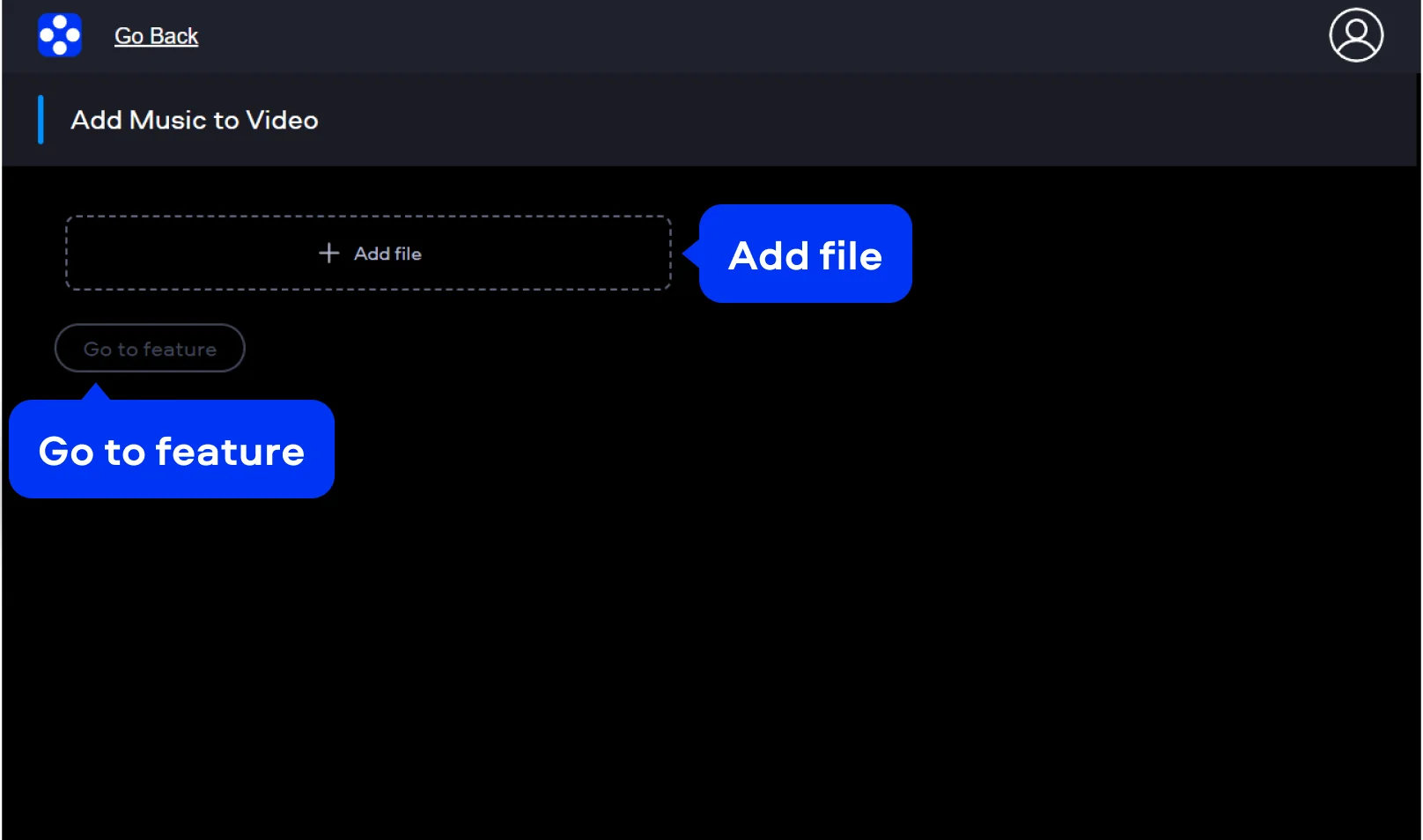
Start by clicking the Upload Files button on the banner above. Click Add file and select the footage you wish to use. Next, click Go to feature.
Movavi Video Editor
Fast and easy editing: trim, cut, crop, adjust colors and speed
By clicking the download button, you're downloading a trial version of the program.*
Add Audio to a Video Online for Free
How to add background music to a video for free online
To truly capture an audience, you need a balanced soundscape. Movavi’s online video editor with music features bridges that gap instantly. This browser-based video editor handles everything within your tab. You can add music to MP4 files without complex setups. The tool allows you to merge audio and video effortlessly. Most creators prefer this online audio adder for video for its simplicity. You get high-quality results without any lag. It is a reliable way to put music over video on the fly.
Step 1. Upload your file
Start by clicking the Upload Files button on the banner above. Click Add file and select the footage you wish to use. Next, click Go to feature.
Step 2. Add music to your video
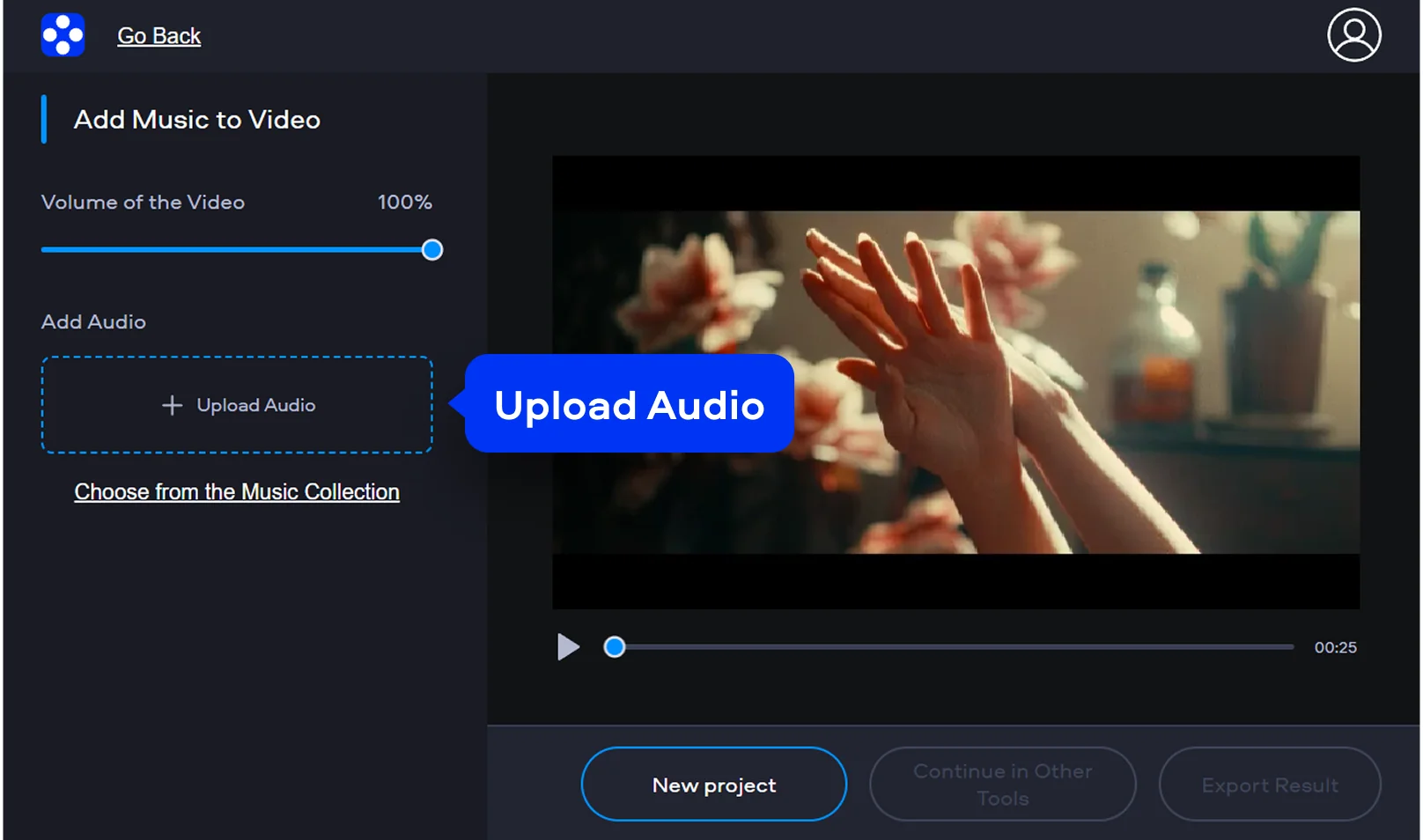
Click Upload Audio and select your audio file. You can also adjust volume online to keep speech clear.
Step 3. Export your video
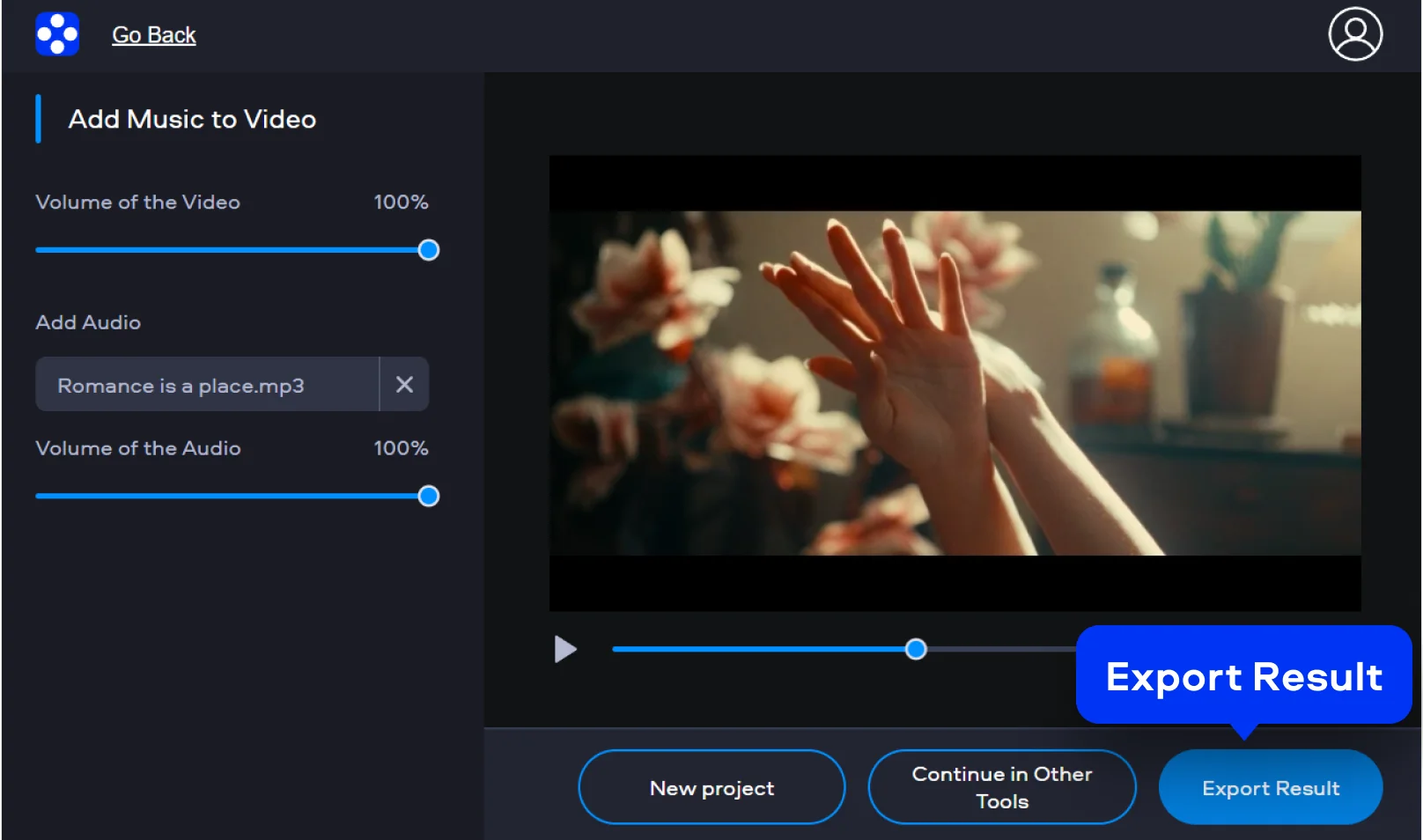
Check the preview to confirm the timing is perfect. If everything sounds right, click the Export Result button. Download your new creation directly to your computer.
How to add background music to a video on desktop
For projects requiring deep customization, the desktop version is superior. Movavi Video Editor serves as a versatile video background music changer for all users. It offers a stable environment for editing long-form content. You can explore a vast sound effects library within the app. You can even remove background noise to sharpen your voiceovers. The interface stays clean while offering advanced professional tools.
Step 1. Install and prepare your workspace
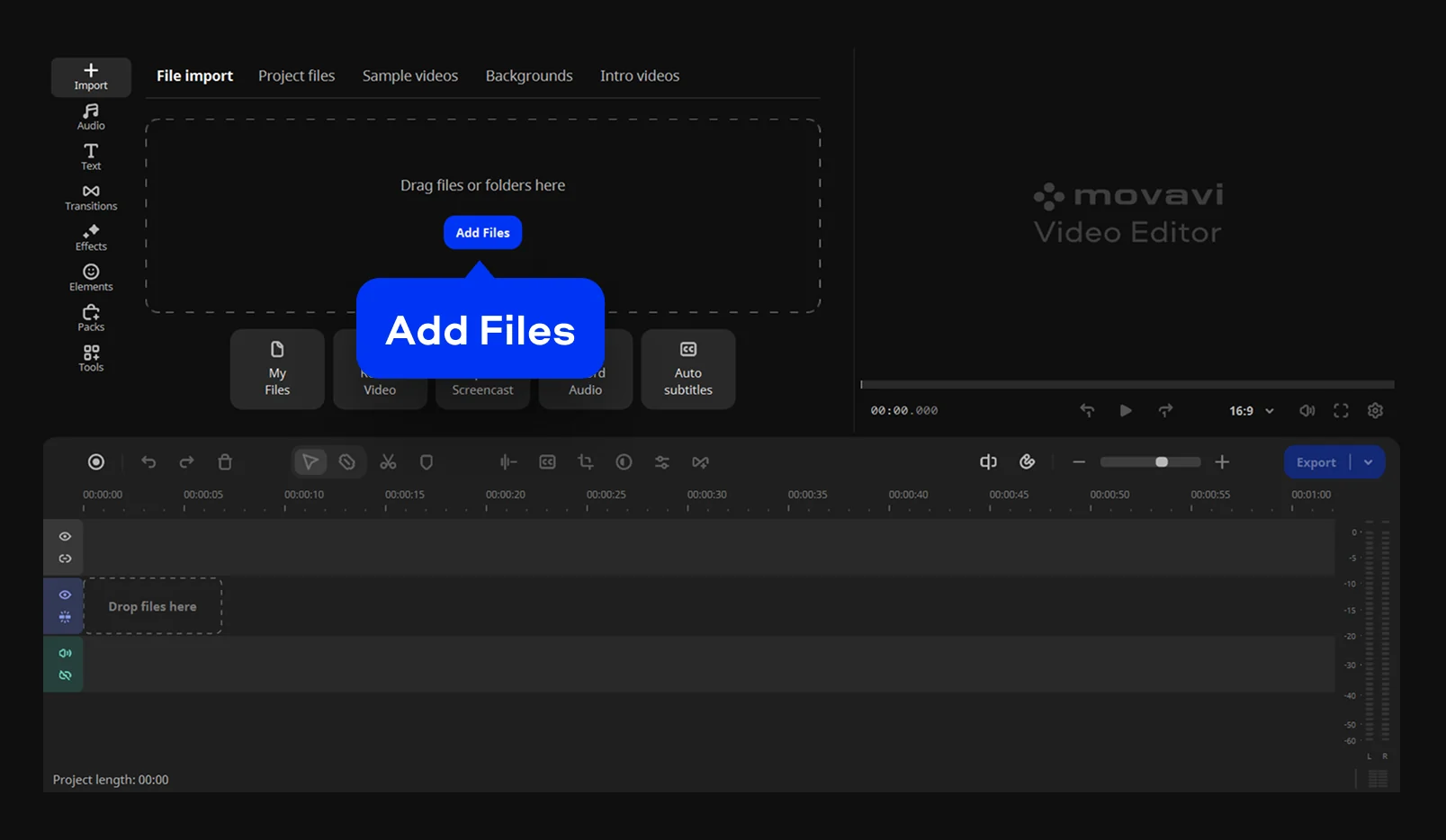
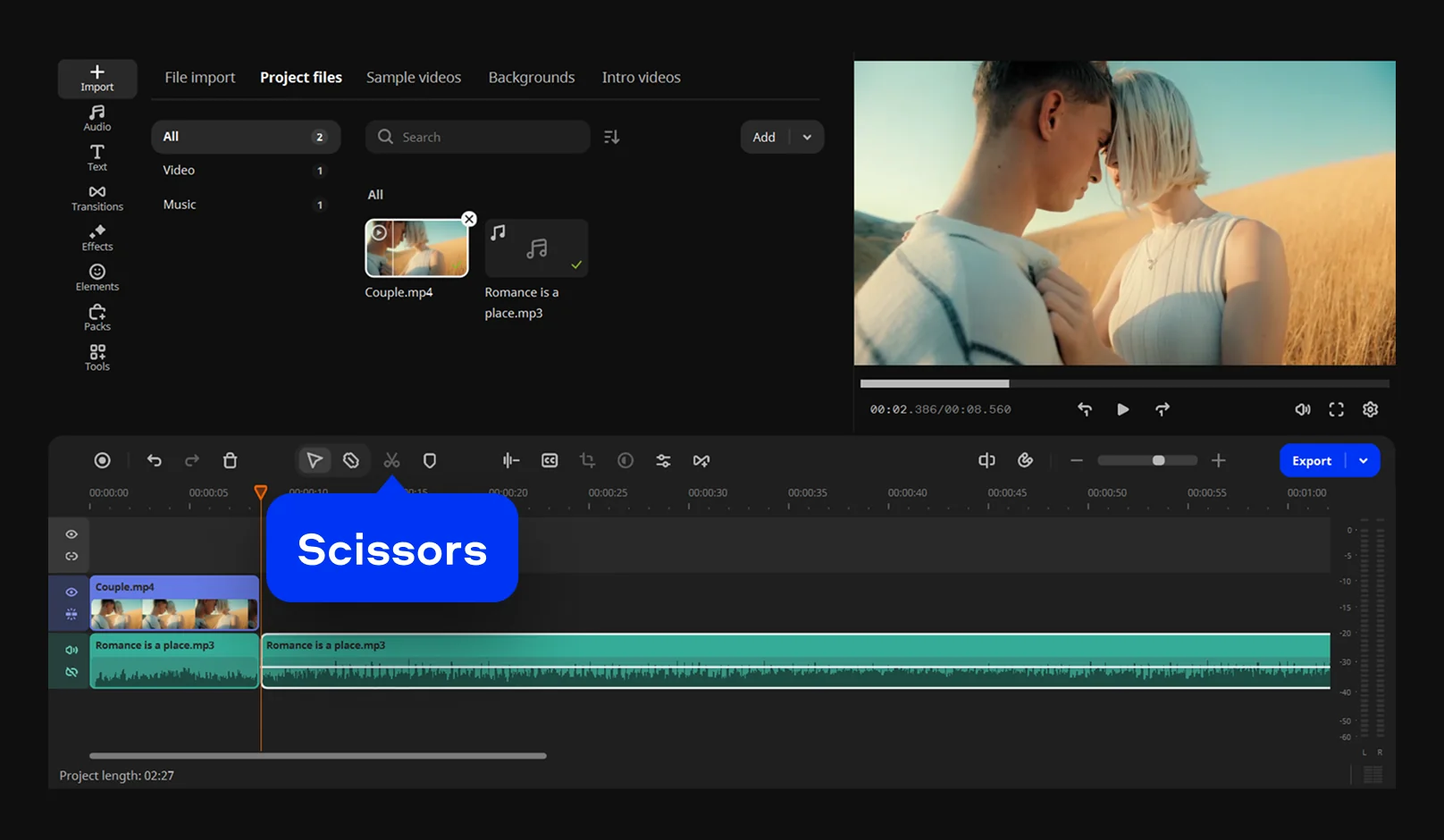
Run the downloaded setup file and follow the clear prompts. Launch the editor once the installation finishes. Click Add Files to bring in your media. Your clips will appear in the Project files. Drag the files onto the timeline: videos will be added on the Video track and audio files will appear on the Audio track.
Step 2. Add background music to the video
Sometimes the music outlasts the visuals. Move the red marker to the end of the video. Use the Scissors icon to split the audio track. Delete the excess part to keep things tidy. To cover a longer video, simply copy and paste the track. If the music feels too abrupt, apply fade in and fade out audio effects.
Step 3. Export your video
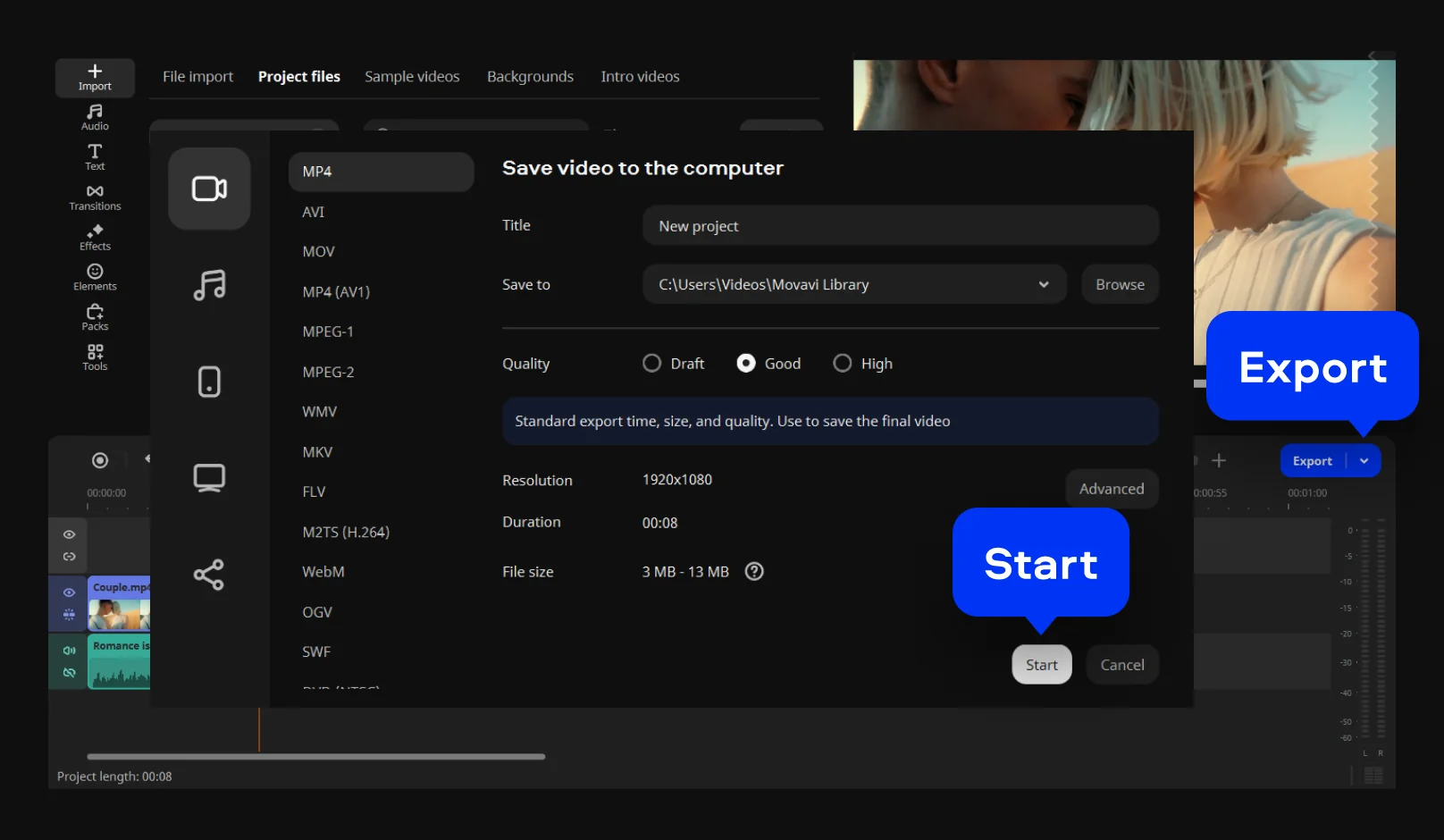
Click the Export button in the corner. Select your preferred format and click Start. The software will process your high-quality video quickly.
We’re the #1 choice for millions of people from all around the world. Join our thriving community and create stunning content with incredible ease.
Frequently asked questions
You can get free background music for videos from the following stock music sites:
You can use the following online services to add music to your videos:
You can use royalty-free music without any legal fear. Some software, like Movavi Video Editor, includes a built-in sound effects library for this purpose. These tracks are specifically curated for creators and social media. You won't have to deal with muted videos or strikes.
Movavi’s online video editor with music is free to access. Simply visit the webpage and upload your chosen media. You can add audio to video online in seconds. The tool will merge audio and video into one file. This is a perfect way to add music to video with no download required.
The Movavi’s online tool is fully compatible with mobile browsers. You don't need a specific app to get results. Simply open the site on your smartphone to begin. This is great for making Instagram Reels background music anywhere. You can also use the voiceover recorder online while traveling. The interface adapts perfectly to smaller touch screens. It is a very flexible way to edit your clips.
Yes – it works on both Android and iPhone, and it’s free to use.
Yes. All features are available for free – no payment required.
No. You can export videos without a watermark.
*The free version of Movavi Video Editor may have the following restrictions depending on the build: watermark on exported clips, 60-second video or 1/2 audio length limit, and/or some advanced features unavailable when exporting videos.
1.5M+ users already subscribed to our newsletter